
Always On Display – The Bright Side of Battery Life
The iPhone 15 has wowed us with its impressive Always On Display feature. It’s like having a personal assistant that never sleeps, providing you with the time, widgets, and a glimpse of your favorite wallpaper while sipping power like a well-behaved energy connoisseur. But let’s face it, there are times when even the best assistant can be a tad too persistent. So, how do you tame this screen-time-hungry companion and save your precious battery life?
The Great Dimming Act
The Always On Display on your iPhone 15 Pro or iPhone 15 Pro Max is a smart cookie. It knows when to give the screen a little nap. When you lock your device or leave it idly lounging, the display goes into dim mode. It uses an incredibly power-efficient, low-power mode, with a refresh rate as low as 1 Hz. This isn’t your screen’s cry for help; it’s just a smart way of conserving energy.
So, what prompts your iPhone to brighten up its act? All it takes is a little nudge or a gentle tap on the screen, or maybe a cheeky press of the side button. If you’re a fan of the ‘Raise to Wake’ feature, just raising and giving your iPhone a flirty look will do the trick. For a more assertive approach, swipe up from the bottom of your display. Your iPhone isn’t playing hard to get; it’s just saving its energy for when you need it the most.
Adding a Personal Touch to Your Display
Now that you’re well-acquainted with your iPhone’s manners, it’s time to add a dash of personalization. Make your Always On Display truly yours by sprinkling it with photos, wallpapers featuring fonts and colors that match your style, and widgets that keep you in the loop. It’s like decorating your room but with more pizzazz.
The Screen’s Well-Deserved Rest
Sometimes, even the brightest stars need to take a break. To help your iPhone and its display catch some z’s and save precious battery life, here’s what it takes:
- Your iPhone is feeling shy, lying face down.
- It’s taking a power nap in your pocket or bag.
- Sleep Focus has been activated – even iPhones need beauty sleep.
- Low Power Mode is on, and your iPhone has gone minimalist.
- Your iPhone is getting cozy with CarPlay in the car.
- You’ve handed over the baton to Continuity Camera.
- You’ve momentarily forgotten your iPhone’s existence (don’t worry; it’s used to it by now).
- Your iPhone is suspiciously quiet because it detects you’ve been hanging out with your paired Apple Watch.
The Power to Choose
Now, let’s say you’ve decided that your Always On Display needs a break. Maybe it’s being a bit too clingy or just showing off too much. Fear not, for you have the power to turn it off.
- Go to Settings.
- Scroll down to Display & Brightness.
- Here, you’ll find Always On Display.
- Ready to take the plunge? Turn it off. Is it back to being your obedient servant? Turn it on again. Your wish is its command.
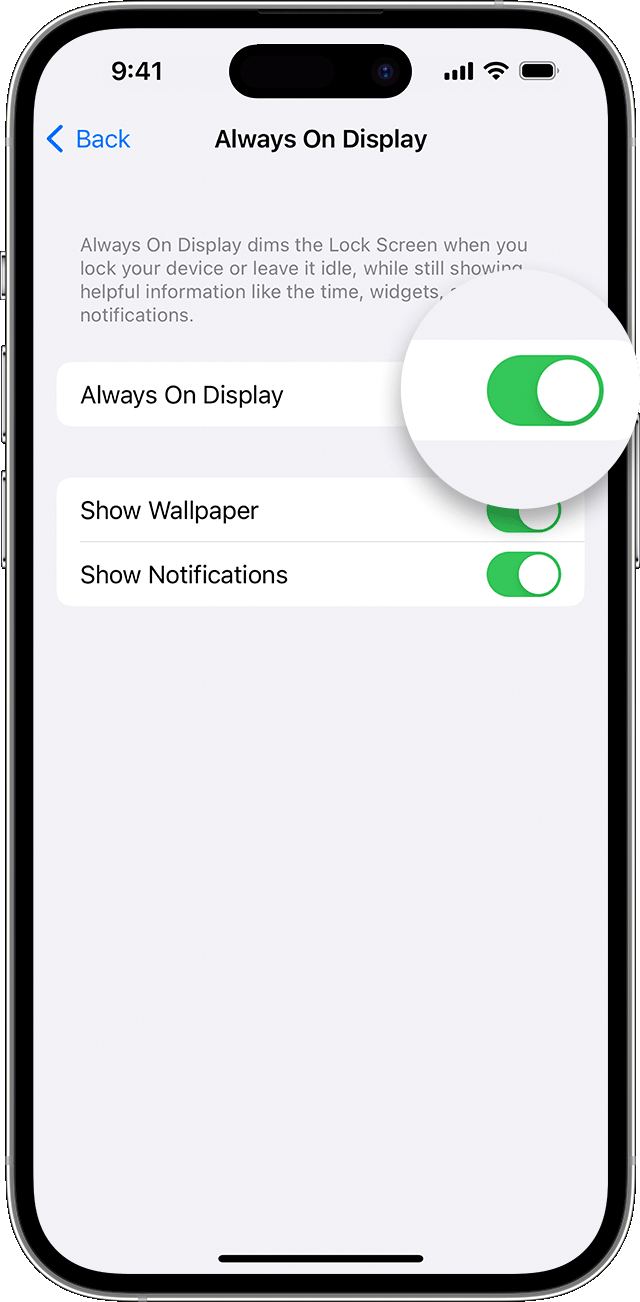
And guess what? You’re not just limited to dealing with the whole display. You can also individually control whether to Show Wallpaper or Show Notifications.
Check out our popular Unlocking services
- Unlock iPhone – All Models
- Unlock Samsung Devices by Unlock Code
- Unlock T-Mobile Devices with the Unlock App
- Unlock majority of Cricket Phones
- Unlock All ATT Networks and Models: Unlock ATT
- Unlock Samsung Google/FRP Account Removal
- Unlock Google Pixel/FRP Account Removal
iPhone 15 Latest updates
- 2024: About iOS 17 Updates: iOS 17.5 introduces a new Pride Radiance wallpaper, Apple News enhancements, and other features, bug fixes, and security updates.
